
How to make Debit/Credit Entry in bulk through excel?
iSocietyManager help you import Debit and credit note in bulk. This will help to save you a lots of time. Following steps to import Debit and credit note.
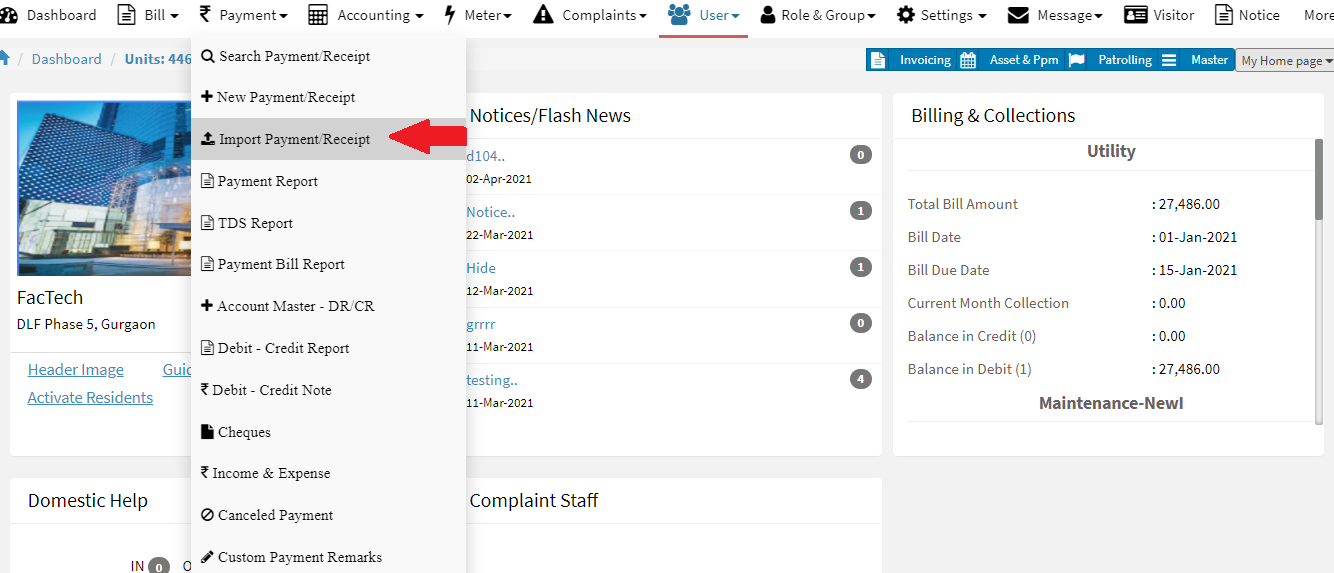
Step 1: Go to Main Menu (Payment), Select “Import Payment Receipt” option from drop down menu
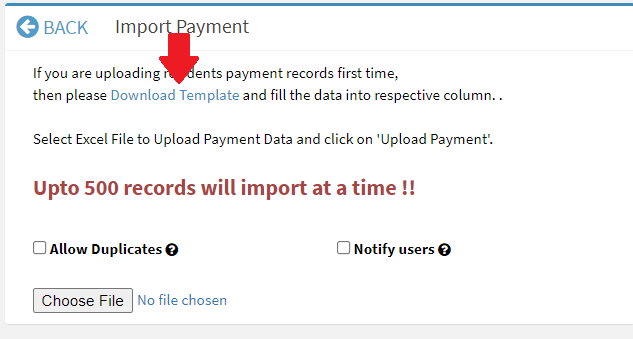
Step 2: Click on “Download Template“.
Step 4: Once excel file will be downloaded. In Excel file we have to provide the data given in the template
- Flat No : Unit No
- Transaction Date : Date of Debit or credit note
- Amount : Amount of Debit or credit
- Type of Payment: We can make Credit in case of credit entries and same you can make Debit in case of debit note
- Payment mode: We can make Credit in case of credit entries and same you can make Debit in case of debit note.
- Bill Plan : Name of the bill plan for which you want to make a debit or credit. e.g. Maintenance, Electricity, Miscellaneous.
- Note* CGST, SGST, IGST, TDS, Remarks, GL Code, Society Account is not mandatory.

Once the Debit and credit template is ready, then you can now import the excel sheet in iSocietyManager.
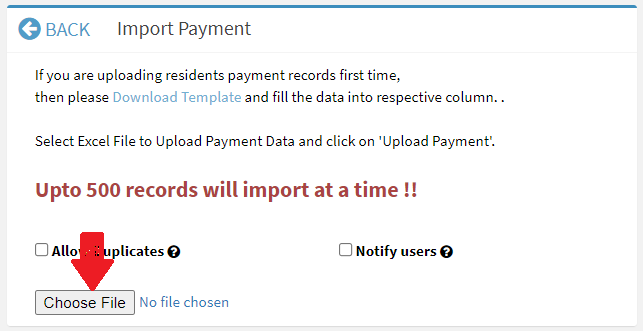
Step 3: Click on Choose File then choose the payment template excel file.
Step 4: Click on Upload Payment button.
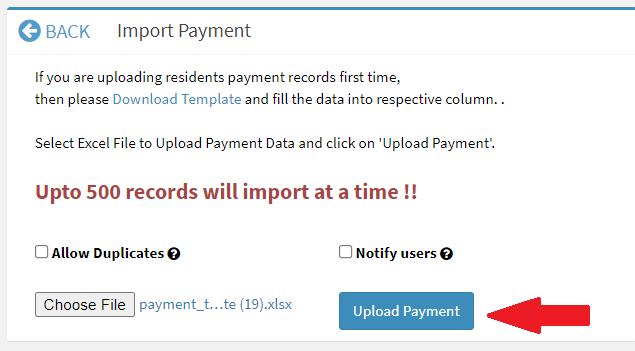
Once you click on Upload payment then it will show successful message
Ready to Transform Your Facility Management?
See how Factech automates maintenance, assets, and compliance in one intelligent platform.
Let's Talk
Have questions about our AI-powered solutions? Our team is here to help you digitize your facility operations.
Ready to Transform Your Facility Management?
See how Factech automates maintenance, assets, and compliance in one intelligent platform.
Let's Talk
Have questions about our AI-powered solutions? Our team is here to help you digitize your facility operations.


Leave a Comment