
How to add Work Order?
Work orders can be manually generated through a work request submitted by a staff member, client or automatically generated through Asset Performance Monitoring or Preventive Maintenance(PM).
Kaizen helps you create work orders for PM. The following is the steps to create a work order manually:-
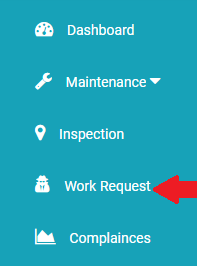
- Go to Work Request menu.
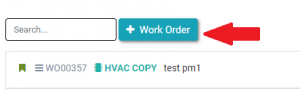
- Click on +Work Order menu to add new work order.
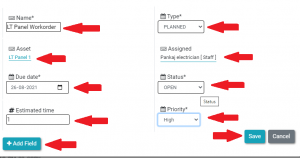
- Enter the following details as :
- Name: Work order name.
- Type: If the Work order is Planned or Unplanned.
- Asset: If you want to map any asset for the work order you are creating but it’s option choice.
- Assigned: To whom this work order will be assigned.
- Due Date: Due date of work order.
- Estimated Time: Approximate duration required to close the work order.
- Priority: Priority defined for the work order.
- Click on Save button to create the work order.
Note: – You can also add any number of properties for the work order by clicking on +Add Field button.
- Select checklist to add the set of instructions for the Work Order.
Ready to Transform Your Facility Management?
See how Factech automates maintenance, assets, and compliance in one intelligent platform.
Let's Talk
Have questions about our AI-powered solutions? Our team is here to help you digitize your facility operations.
Ready to Transform Your Facility Management?
See how Factech automates maintenance, assets, and compliance in one intelligent platform.
Let's Talk
Have questions about our AI-powered solutions? Our team is here to help you digitize your facility operations.


Leave a Comment