FAQ Category: Work Order

What to do in case technician app unable to recognize a QR Code?

Sometime it happens that you tried to scan the QR code through the technician app and you scan the QR code, but the system doesn’t recognize the QR code. There are multiple reasons behind such query, the most common reasons  are as follows- Check your internet connectivity. Make sure that the Asset you are scanning
Read more

How to add Schedule manually?

What is Schedule? The purpose of the Schedule is to add the frequency, instruction for a particular work order and map the same to respective asset. By doing this we got alerts for a due schedule in advance. We can add checklist instructions, assign responsible staff. For example, If we create Schedule for an Asset

Read more

How to Print QR Code in Asset Management?

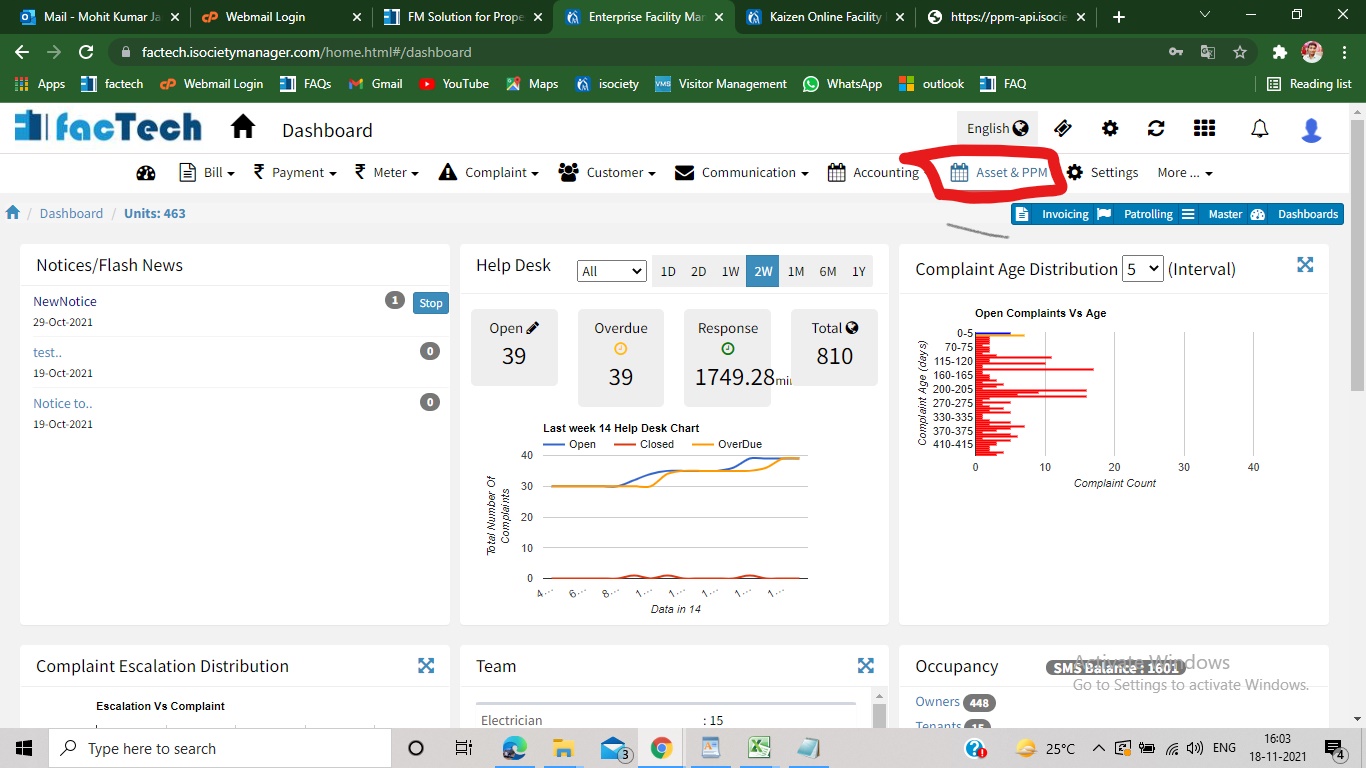
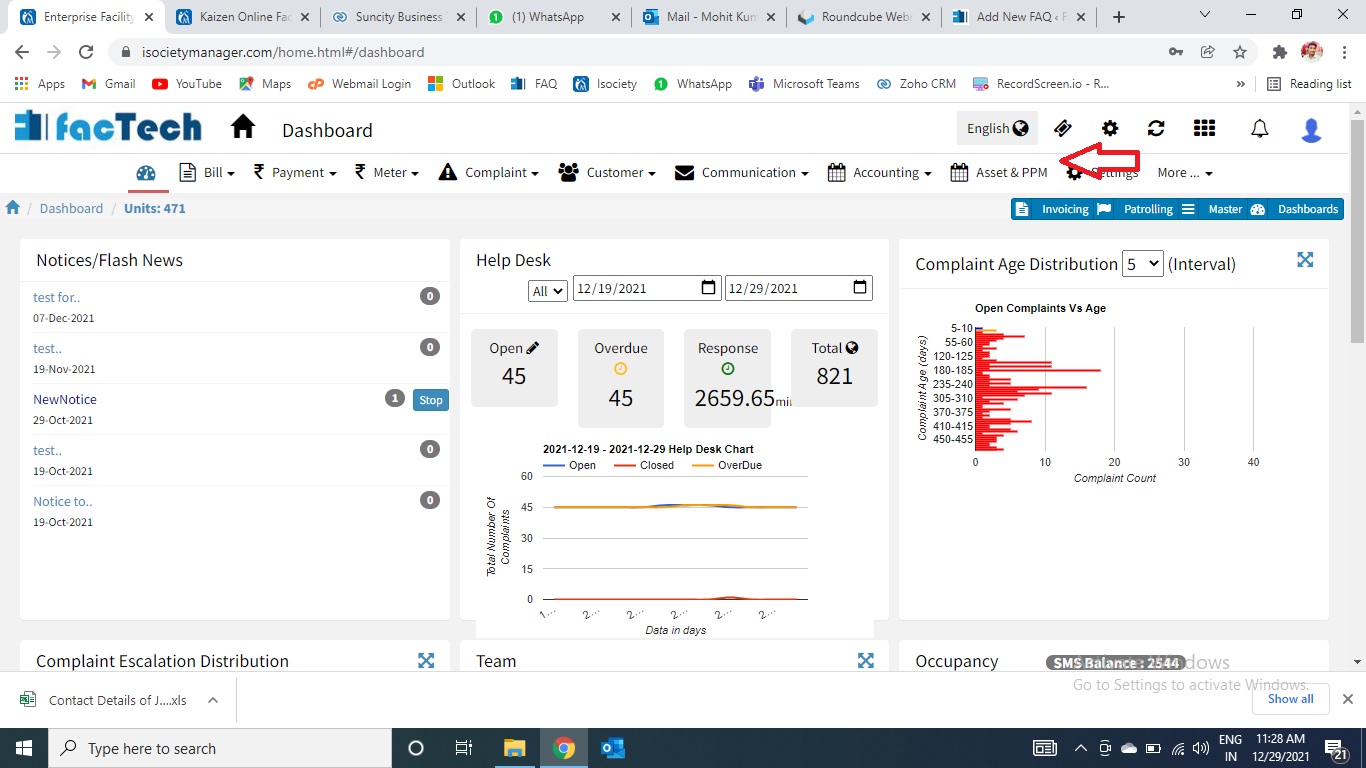
Step 1. Sign in to https://factech.co.in using your login id and password. Step 2. Click on Asset&PPM tab, available on the upper right of the screen. Step 3. From the left side of the tab, click on the asset, available under the maintenance option. Step 4 Now click on the small blue-colored square box, present

Read more

How to download Work order Reports for a Particular PM Schedule?

Step 1. Sign in to factech.co.in using your login id and password. Step 2. Click on Asset & PPM tab available on the upper right of the screen.(refer Screenshot) Step 3. After clicking on Asset & PPM, following new window open(refer screenshot). Step 4 From the left of the screen, click on the PM Schedule,

Read more

Hello ! If You Are Ready To Take Your Facility Management To Next Level...