Staff Self-Assignment Feature in FacTech Complaint Management
Empower Staff to Assign Complaints to Themselves
We are excited to introduce a new feature in FacTech CAFM – Staff Self-Assignment.
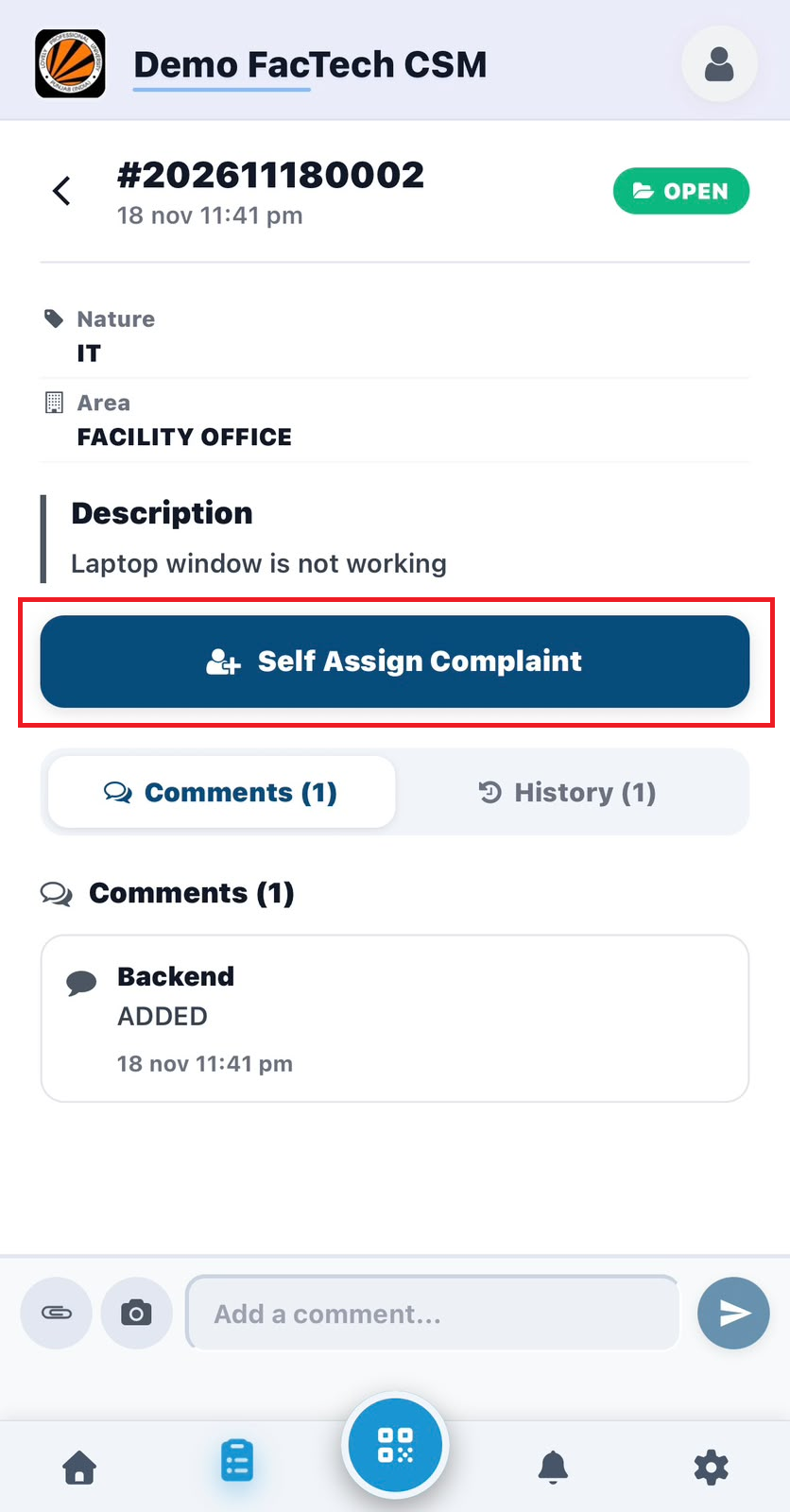
With this feature, relevant department staff members can view complaints related to their department and assign those complaints to themselves directly through the FacTech Technician App.
This eliminates the need for an administrator or supervisor to manually assign every complaint and allows the responsible department members to take ownership of complaints more efficiently.
What is Staff Self-Assignment?
Staff Self-Assignment allows eligible staff members to assign an available complaint to themselves based on their department or technician type.
The feature works according to the mapping between Complaint Category and Staff Type.
For example:
- Complaint Category: Electricity
- Mapped Staff Type: Electrician
Whenever a complaint is raised under the Electricity category, it becomes visible to the relevant staff members belonging to the Electrician department.
Any eligible staff member can then select the complaint and assign it to themselves using the Self Assign option.
Once a staff member assigns the complaint to themselves, it will no longer be available for other staff members to self-assign.
How Does Staff Self-Assignment Work?
The process follows three simple stages:
Category & Staff Type Mapping → Complaint Visibility → Staff Self-Assignment
Step 1: Category and Staff Type Mapping
The feature works based on the mapping between the complaint category and the relevant staff type.
For example: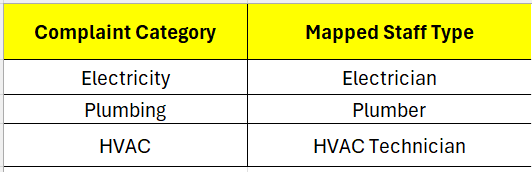
When a complaint is raised under a particular category, it becomes available to the relevant department staff members based on the configured mapping.
Step 2: View Available Complaints in the Technician App
Once a complaint is raised:
- Staff members need to log in to the FacTech Technician App.
- Navigate to the Complaints section.
- View the complaints available for their relevant department.
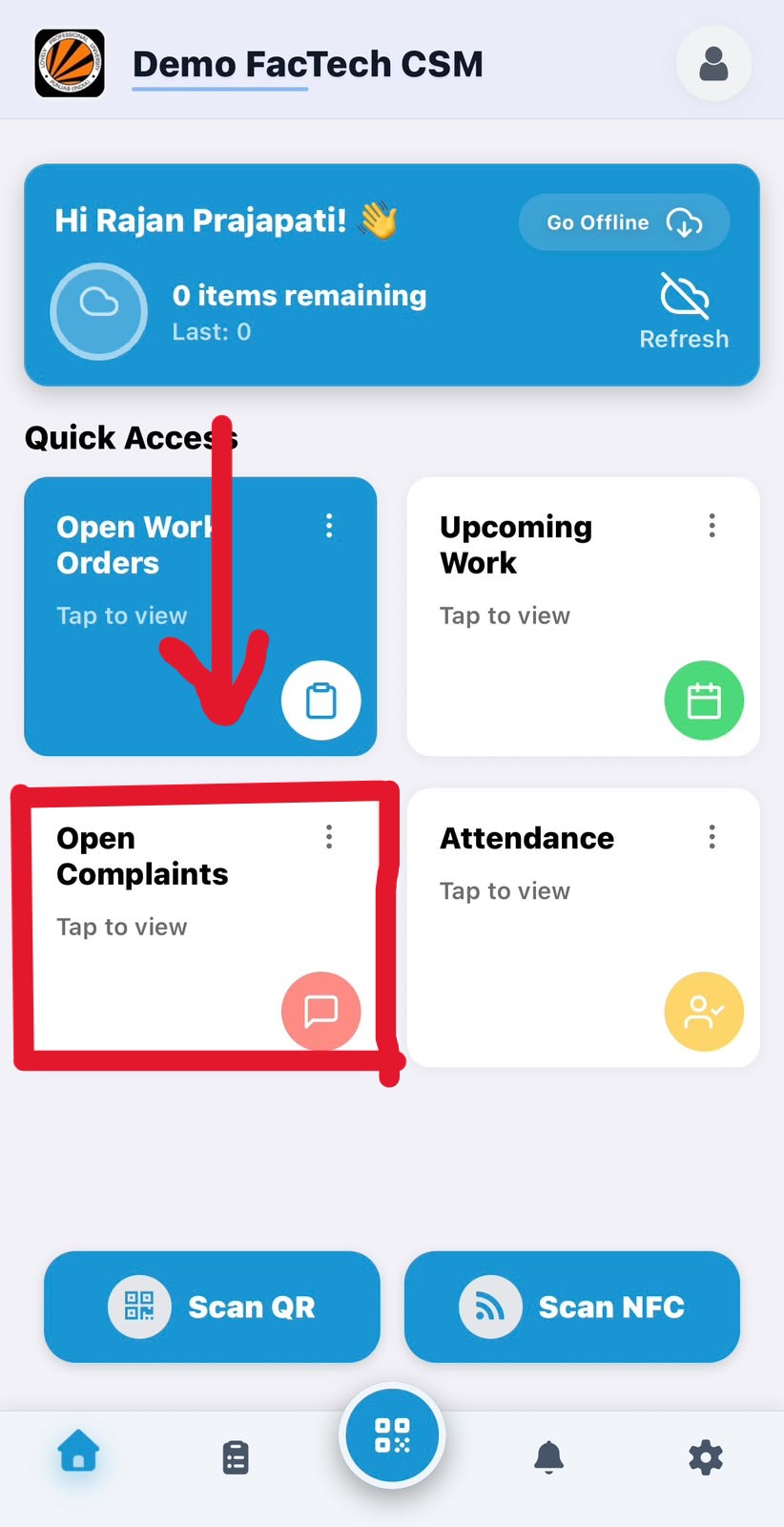
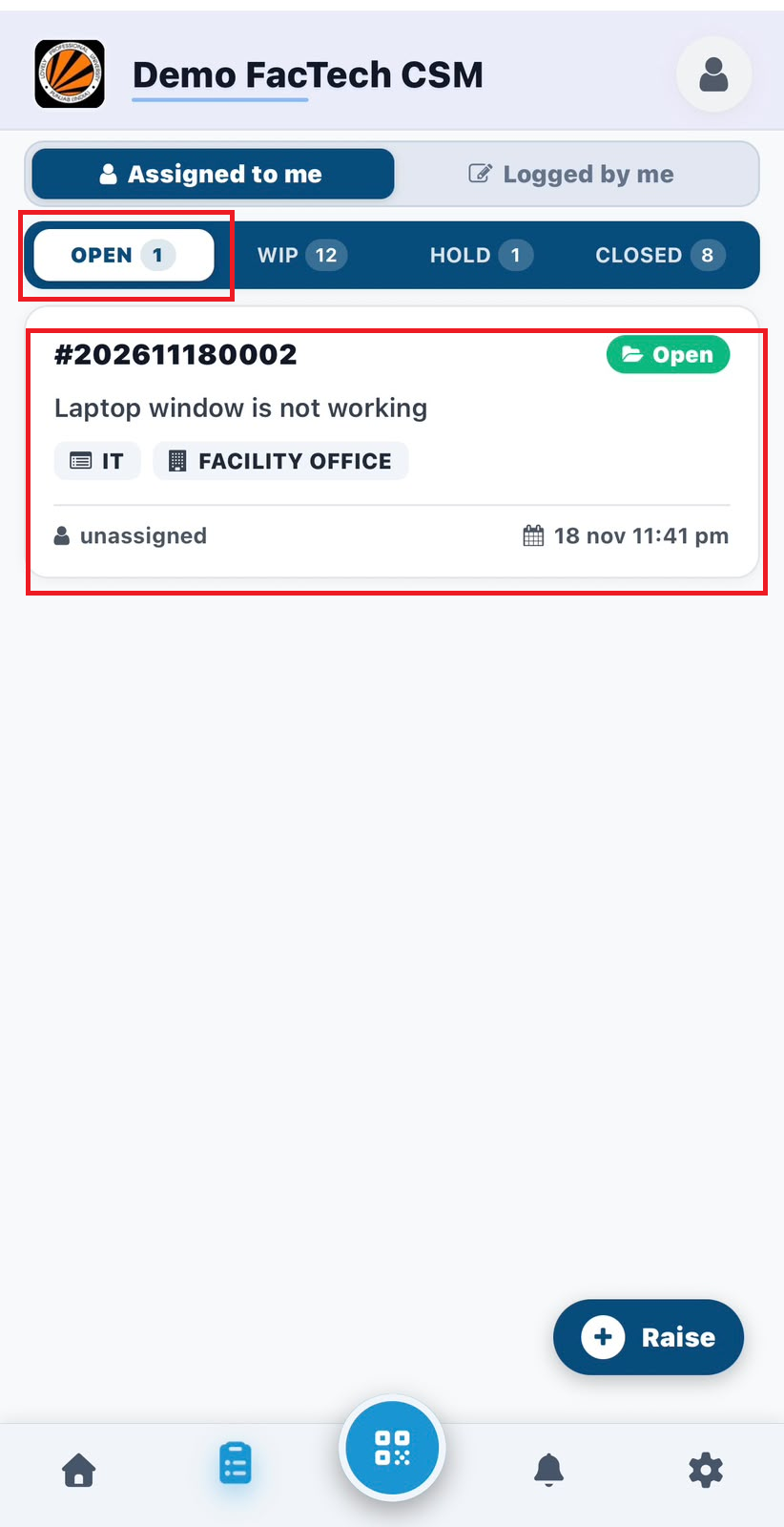
The eligible staff members can see the complaints that are yet to be assigned.
Step 3: Assign the Complaint to Yourself
Once the staff member identifies the complaint they want to handle:
- Open the required complaint.
- Click on the Self Assign button.
- On the pop-up page you need to click on OK button
- After clicking on OK button the complaint will be assigned to that particular staff member.
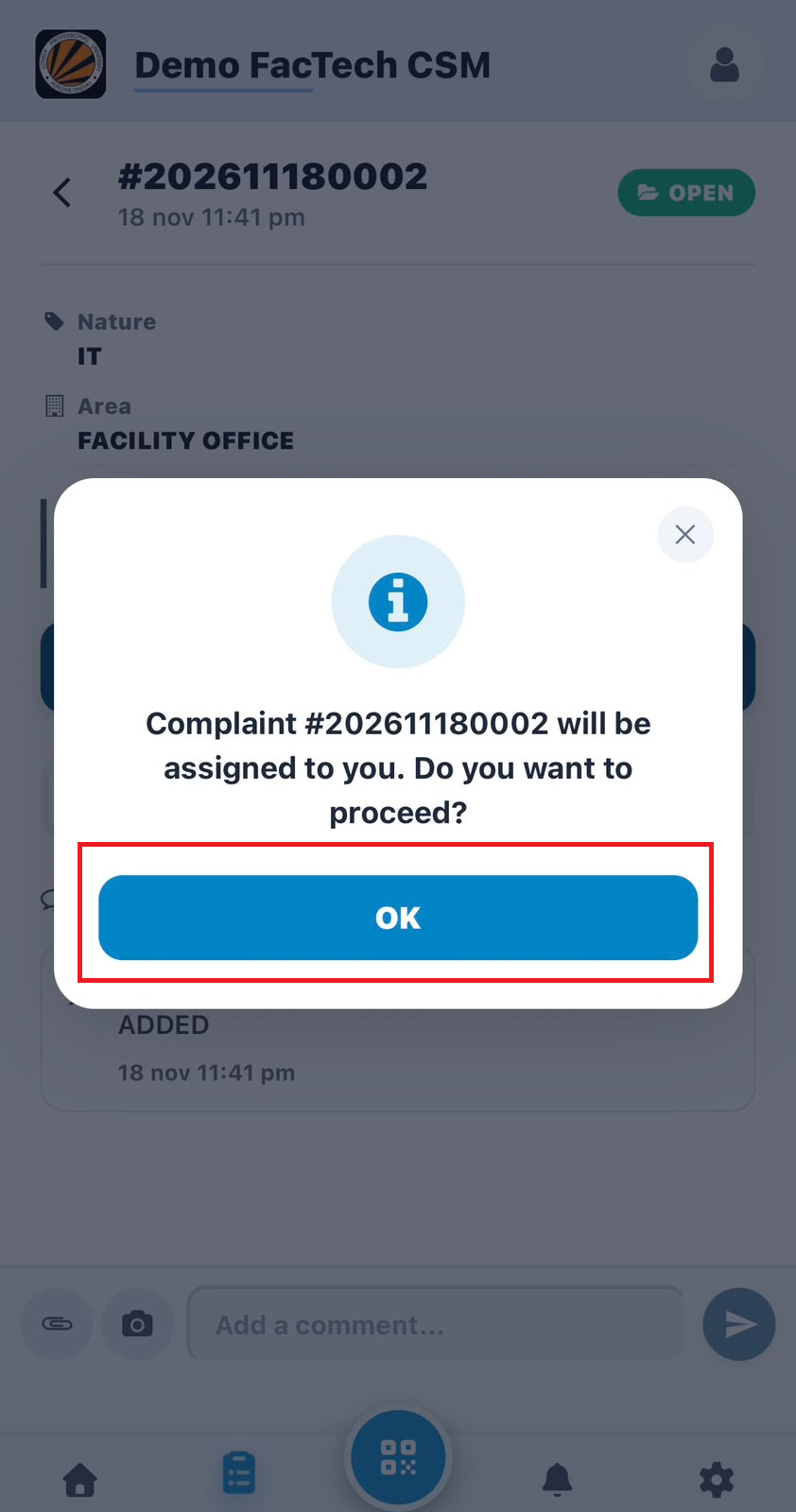
Once assigned, the complaint will disappear from the available complaint list of other eligible staff members.
The selected staff member can then take ownership and proceed with the complaint resolution process.
Example: How Staff Self-Assignment Works
Let’s understand this with a practical example.
Suppose an organization has three electricians:
- Electrician A
- Electrician B
- Electrician C
A complaint is raised with the category Electricity.
Since the Electricity category is mapped with the Electrician staff type, the complaint becomes visible to all three eligible electricians in their Technician Apps.
Now suppose Electrician B clicks on Self Assign.
The result:
- The complaint gets assigned to Electrician B.
- The complaint disappears from the available list of Electrician A and Electrician C.
- Electrician B can now take responsibility for resolving the complaint.
This prevents multiple staff members from picking up the same complaint.
Key Benefits
✅ Eliminates manual complaint assignment efforts
✅ Allows relevant department staff to take ownership
✅ Category-based complaint visibility
✅ Staff type-based assignment
✅ Faster complaint allocation and response
✅ Prevents multiple staff members from picking the same available complaint
✅ Improves operational efficiency
✅ Encourages better accountability among maintenance teams
Frequently Asked Questions (FAQs)
Q1. What is Staff Self-Assignment?
Staff Self-Assignment allows eligible staff members to assign available complaints to themselves directly through the FacTech Technician App.
Q2. How does the system identify which staff members can view a complaint?
The system uses the mapping between the Complaint Category and Staff Type to make complaints available to relevant department staff.
Q3. Where can staff members access available complaints?
Staff members can log in to the FacTech Technician App and navigate to the Complaints section.
Q4. How can a staff member assign a complaint to themselves?
The staff member needs to open the required complaint and click on the Self Assign button.
Q5. What happens after a complaint is self-assigned?
The complaint gets assigned to the selected staff member and disappears from the available complaint list of other eligible staff members.
Q6. Can multiple staff members assign the same complaint?
Once a complaint is successfully self-assigned, it is no longer available for other staff members to self-assign.
Q7. Does this feature eliminate the need for manual complaint assignment?
It reduces the need for manual assignment by allowing eligible department staff to take ownership of available complaints themselves.
Conclusion
The Staff Self-Assignment feature in FacTech CAFM makes complaint allocation faster, simpler, and more efficient.
By connecting complaint categories with relevant staff types, organizations can ensure that complaints are visible to the right department members, allowing them to take ownership without waiting for manual assignment.
Right Complaint. Right Department. Faster Ownership.
Ready to Transform Your Facility Management?
See how Factech automates maintenance, assets, and compliance in one intelligent platform.
Let's Talk
Have questions about our AI-powered solutions? Our team is here to help you digitize your facility operations.
Ready to Transform Your Facility Management?
See how Factech automates maintenance, assets, and compliance in one intelligent platform.
Let's Talk
Have questions about our AI-powered solutions? Our team is here to help you digitize your facility operations.