
How to Reactivate a Staff?
Factech allows authorized administrators to reactivate staff members whose employment status is Terminated, Suspended, On Leave, Service End, Off Duty, or another inactive status.
To reactivate a staff member, the administrator must have Write & Update permission.
Steps to Reactivate a Staff Member
- Log in to Factech using an account that has Write & Update permission.
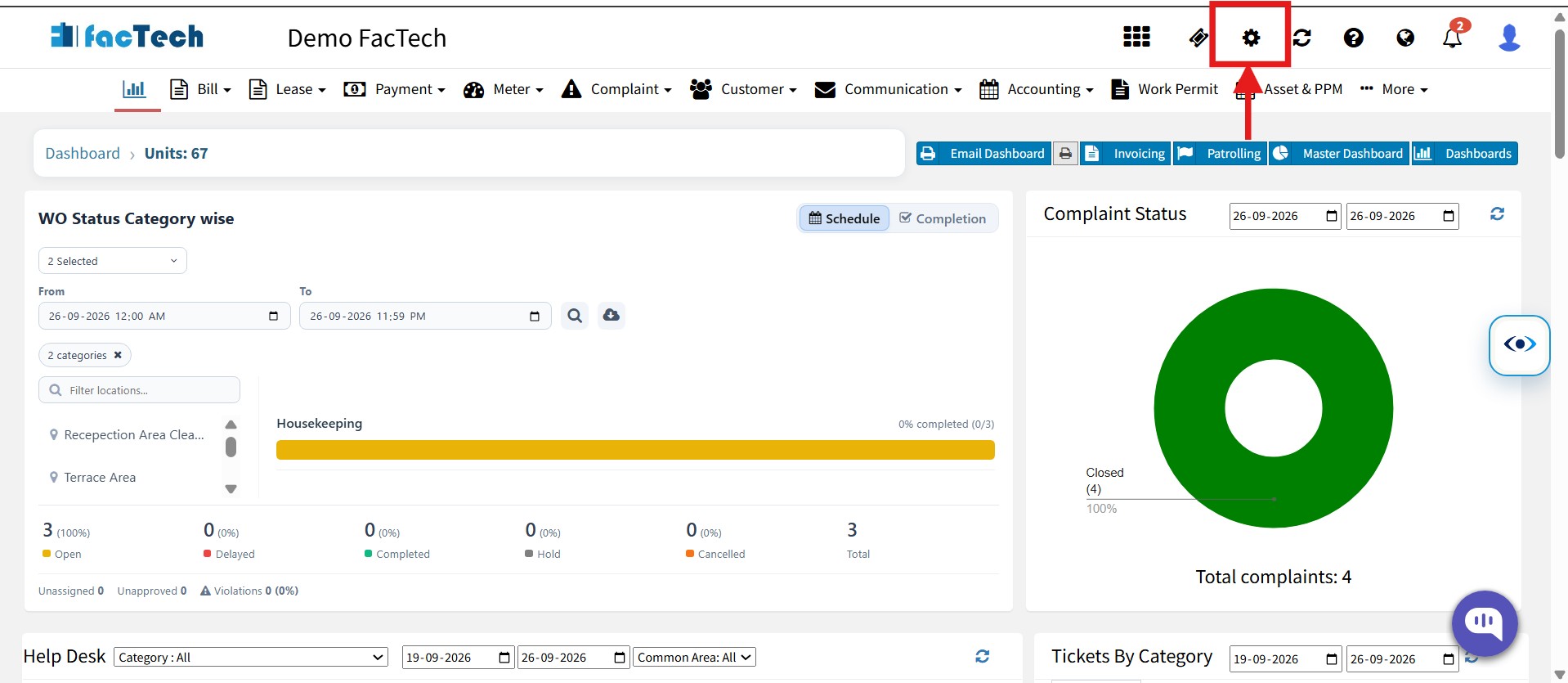
- Go to Settings.

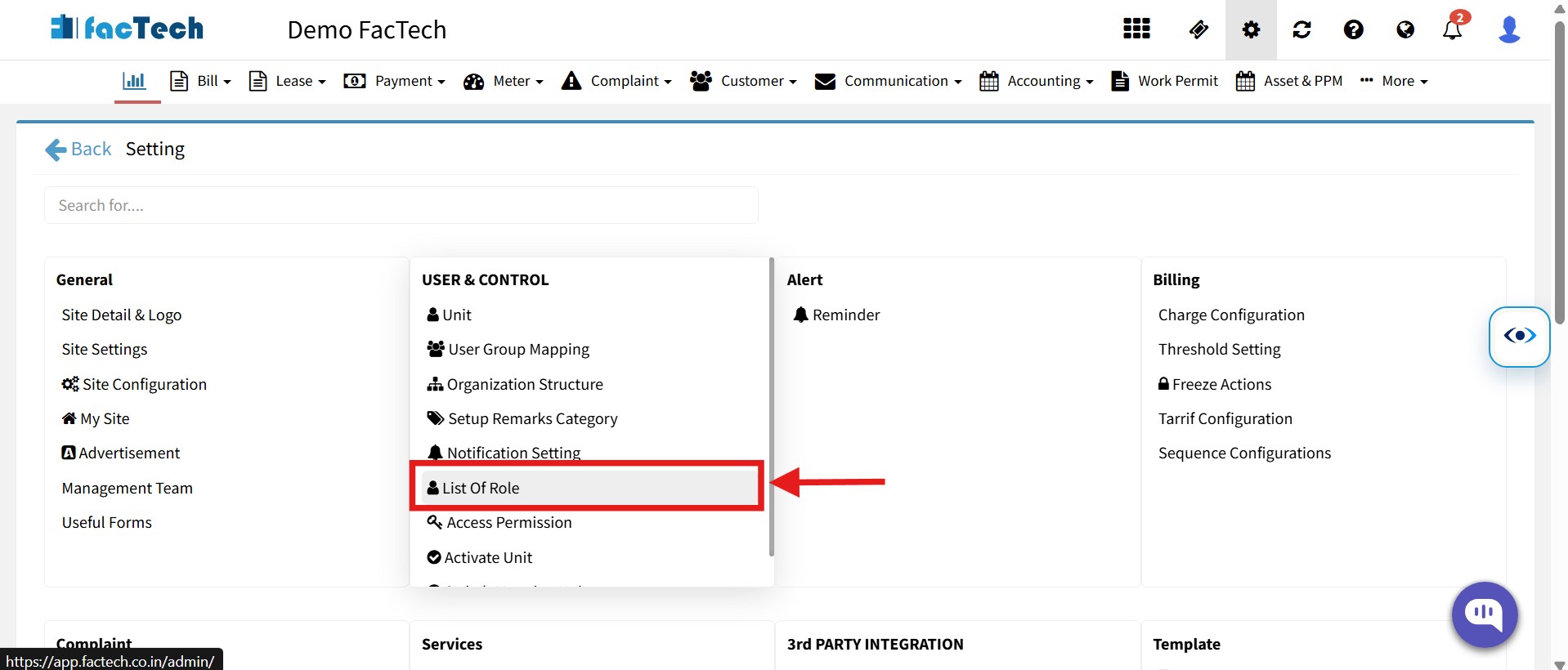
- Click on List of Role.

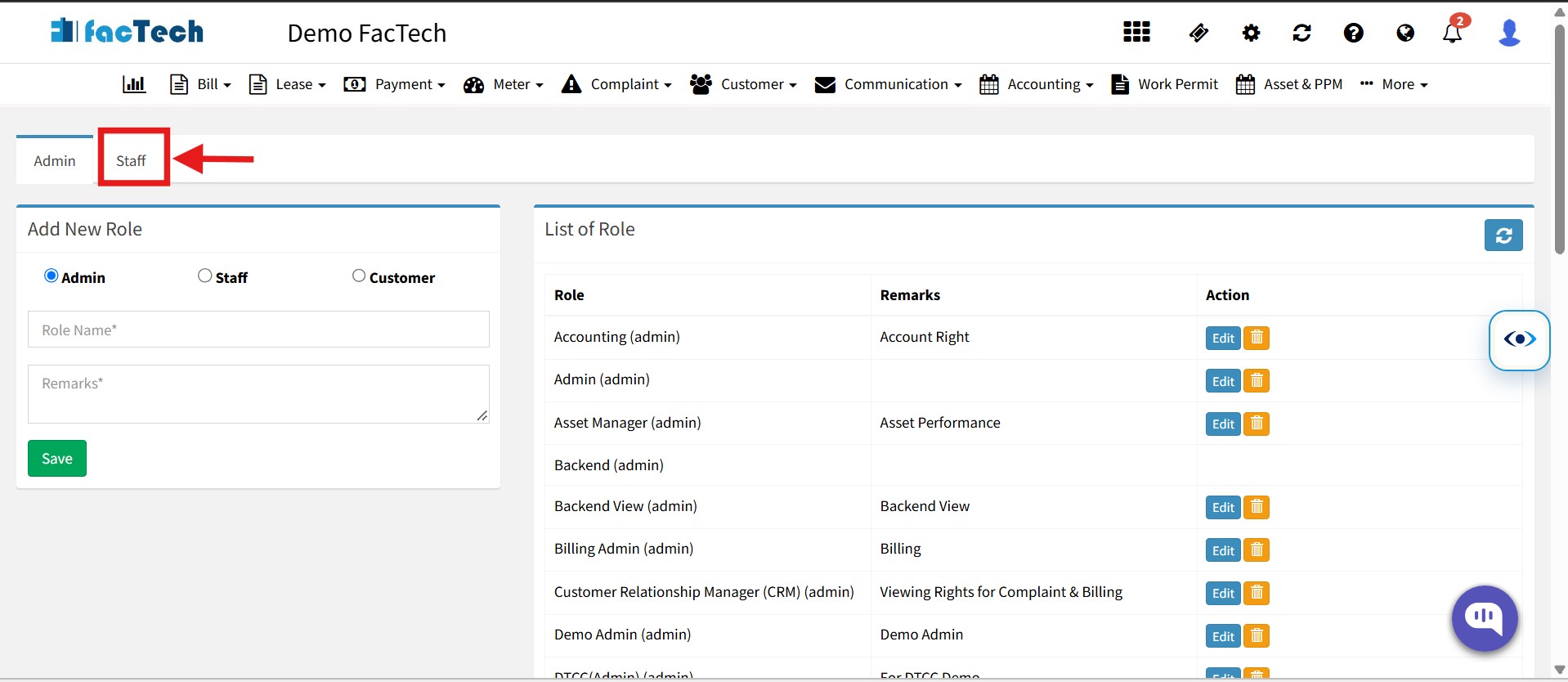
- Click on Staff.

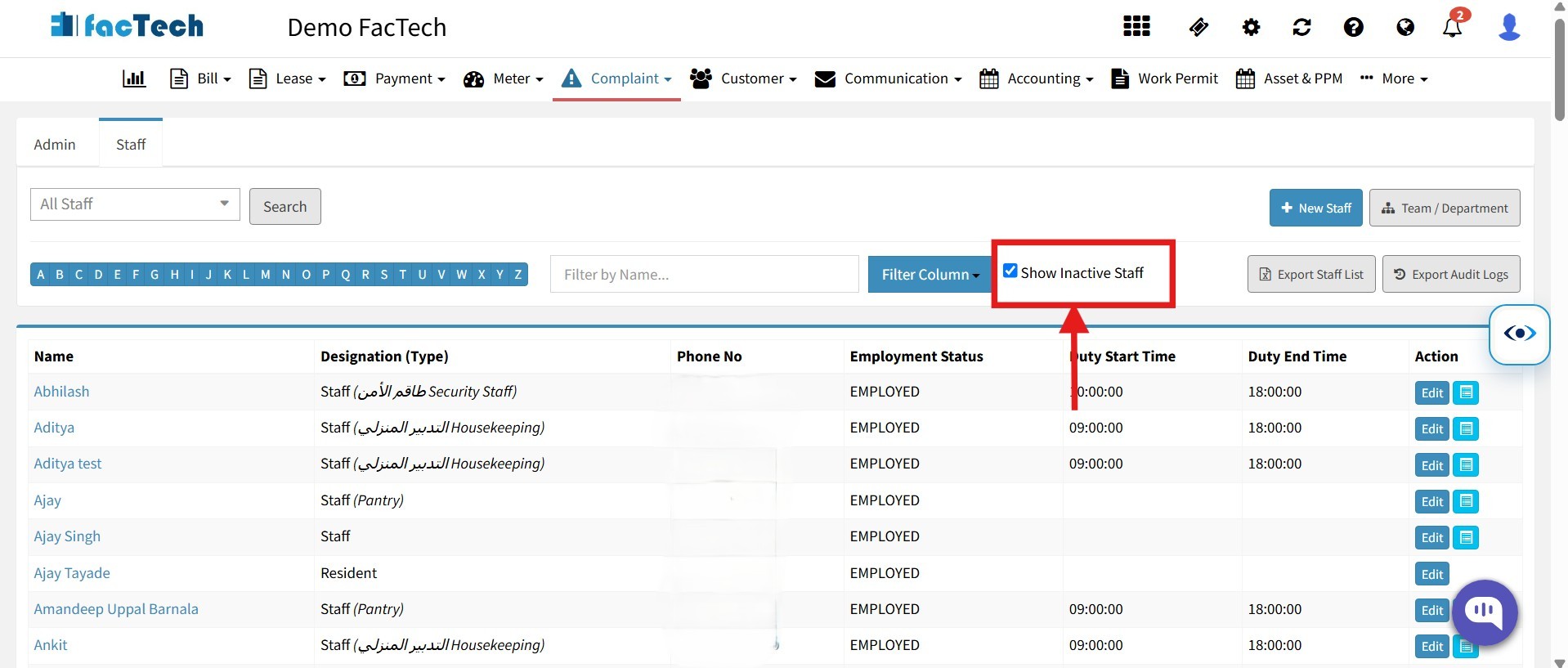
- Click on Show Inactive Staff.

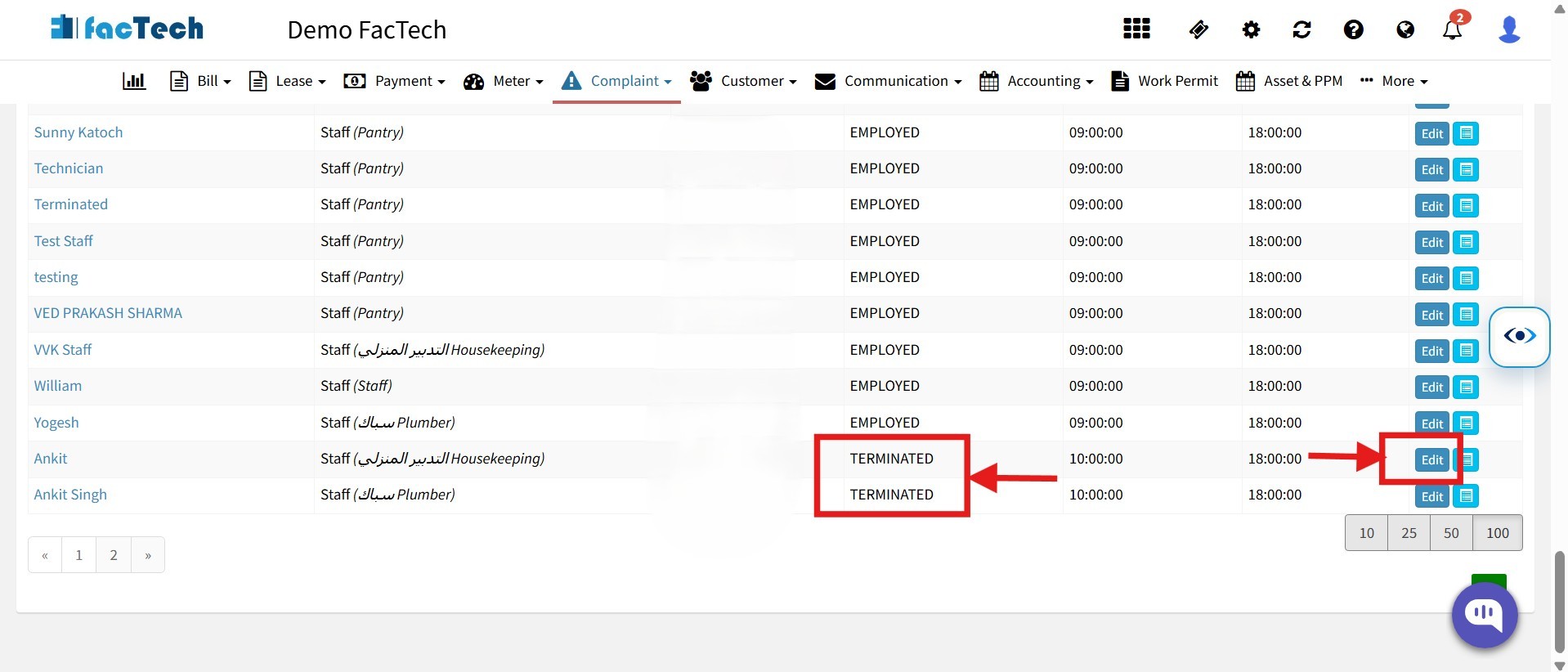
- From the staff list, find the Terminated, Suspended, On Leave, Service End, Off Duty, etc. staff member in the Employment Status column. And click on edit button.

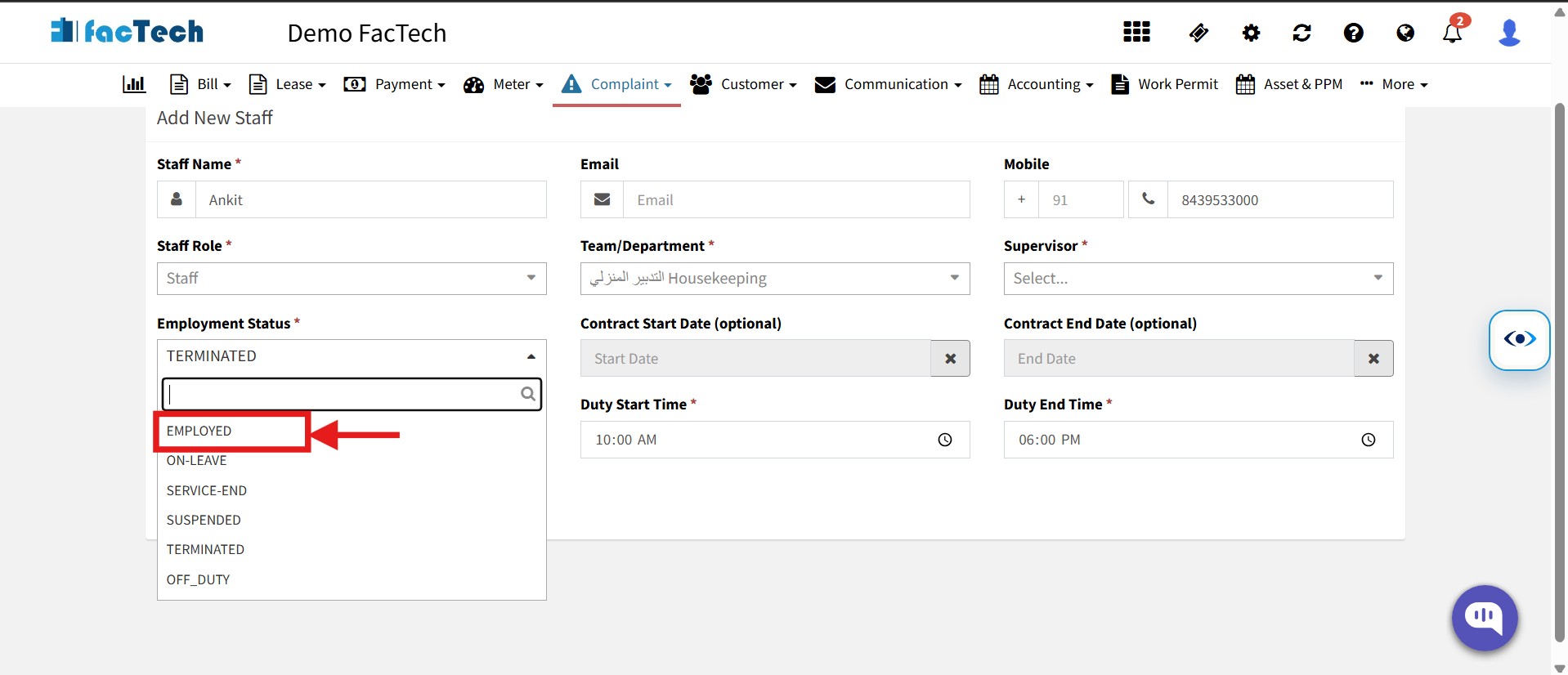
- Click on the Employment Status drop down, select Employed, and click on Update.


After Reactivation
The staff member’s status changes to Employed. Ask the staff member to log in to the Factech app again.
After successful login, the staff member will be able to access the app and perform their assigned activities.
Ready to Transform Your Facility Management?
See how Factech automates maintenance, assets, and compliance in one intelligent platform.
Let's Talk
Have questions about our AI-powered solutions? Our team is here to help you digitize your facility operations.
Ready to Transform Your Facility Management?
See how Factech automates maintenance, assets, and compliance in one intelligent platform.
Let's Talk
Have questions about our AI-powered solutions? Our team is here to help you digitize your facility operations.


