
How to add new role?
A role is a group of permissions given to a particular user to access some resources. In other words, once a user is authenticated then what resources the user can access is determined by her role.
Roles are categorized under 3 heads:
- Admin:- Facility Admin, Supervisors, CRM, Helpdesk Manager, Management Team
- Staff:- Who will use Technician App to work on complaints, e-checklist etc., Examples are Housekeeper, Technicians, Ground Staff
- Customer:- Employees, Tenants, Residents of the property.
To create a new role.
- Go to Settings -> List of Role
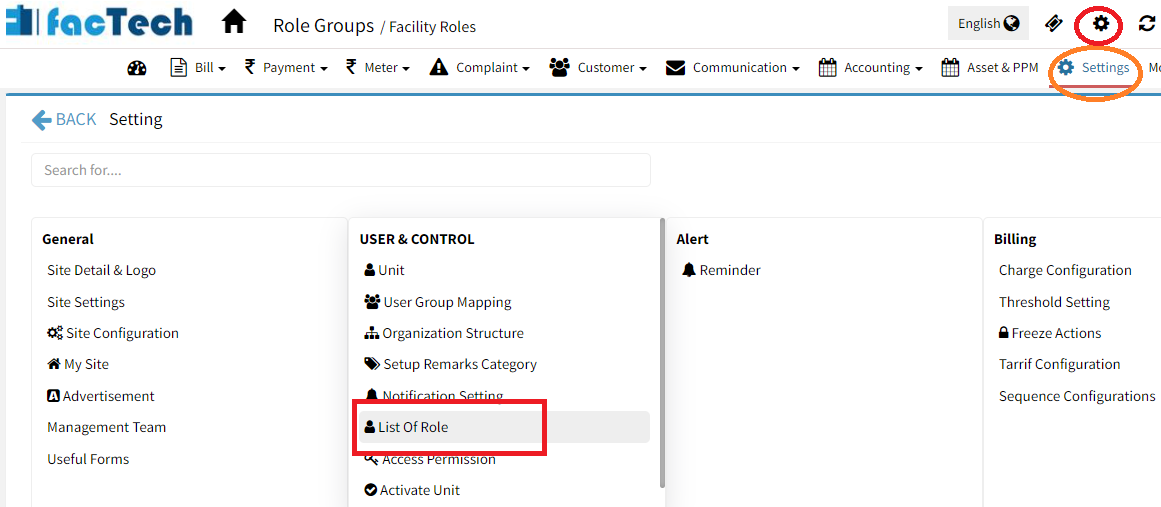
- You can see the list of existing roles on the right-side UI. To add a new one, add details on the left UI.
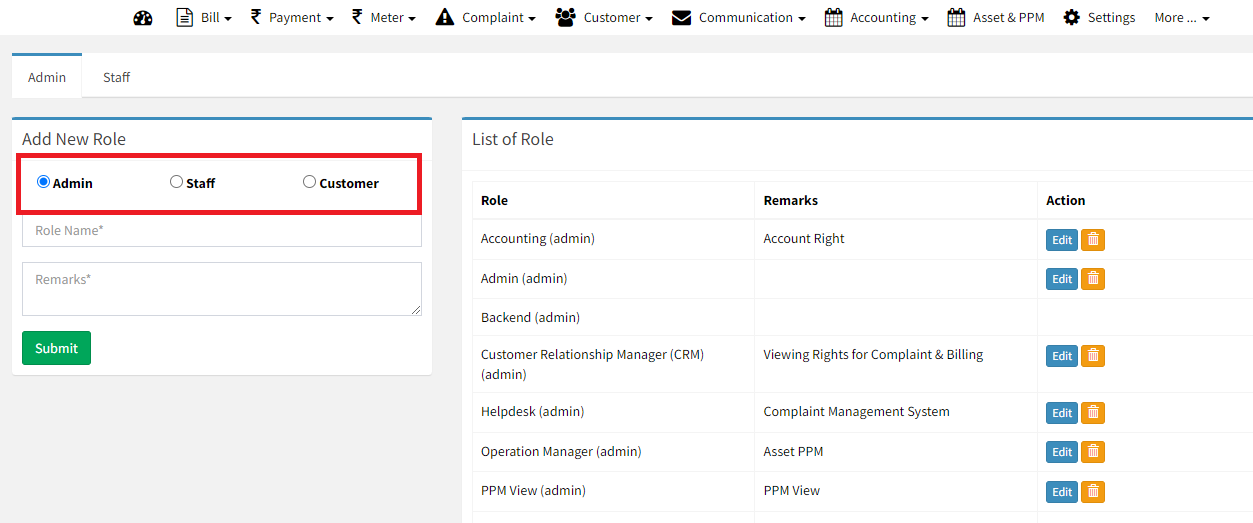
Primarily roles are of below 3 types. Choose the option as per your requirement
- Admin:- Facility Admin, Supervisors, CRM, Helpdesk Manager, Management Team
- Staff:- Who will use Technician App to work on complaints, e-checklist etc., Examples are Housekeeper, Technicians, Ground Staff
- Customer:- Employees, Tenants, Residents of the property.
Note: New Role will have not any permission. You need to assign permission to the new role created. User Directory Read Permission is a must to allow login.
How to Assign Permission or Rights to a Role
Ready to Transform Your Facility Management?
See how Factech automates maintenance, assets, and compliance in one intelligent platform.
Let's Talk
Have questions about our AI-powered solutions? Our team is here to help you digitize your facility operations.
Ready to Transform Your Facility Management?
See how Factech automates maintenance, assets, and compliance in one intelligent platform.
Let's Talk
Have questions about our AI-powered solutions? Our team is here to help you digitize your facility operations.


Leave a Comment