How to Configure and Use the Scorecard Checklist in FacTech
1. What is the Scorecard Checklist feature in FacTech?
The Scorecard Checklist feature in the Soft Services module allows administrators to assign score values to checklist parameters.
It helps organizations:
Measure performance against defined standards
Automatically calculate compliance scores
Monitor service quality
Generate structured performance reports
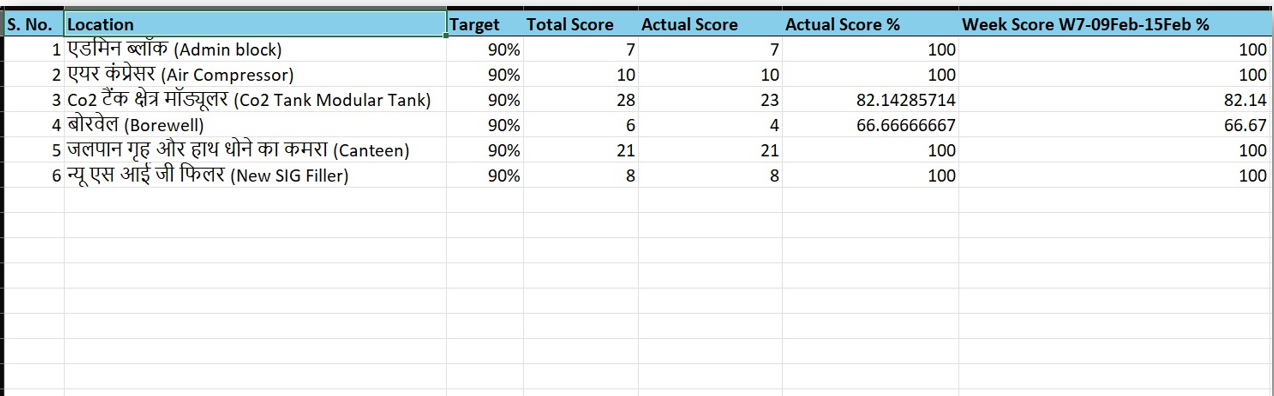


The system calculates the total score automatically based on configured scoring labels.
2. How do I configure a Scorecard Checklist?
To configure scoring in a checklist:
Log in to the FacTech System as an Admin.
Navigate to Soft Services.
From the left-side menu, select Housekeeping.
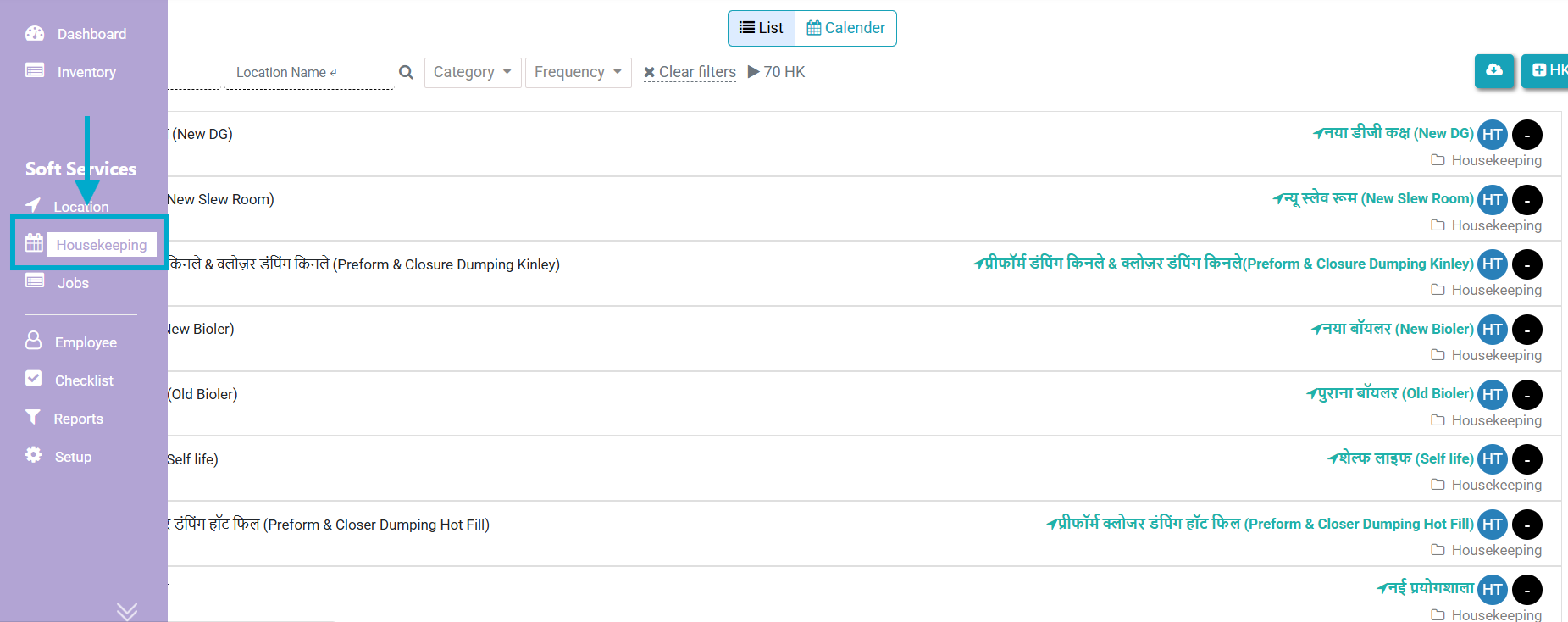

Open the required checklist.
Click on Build Task.
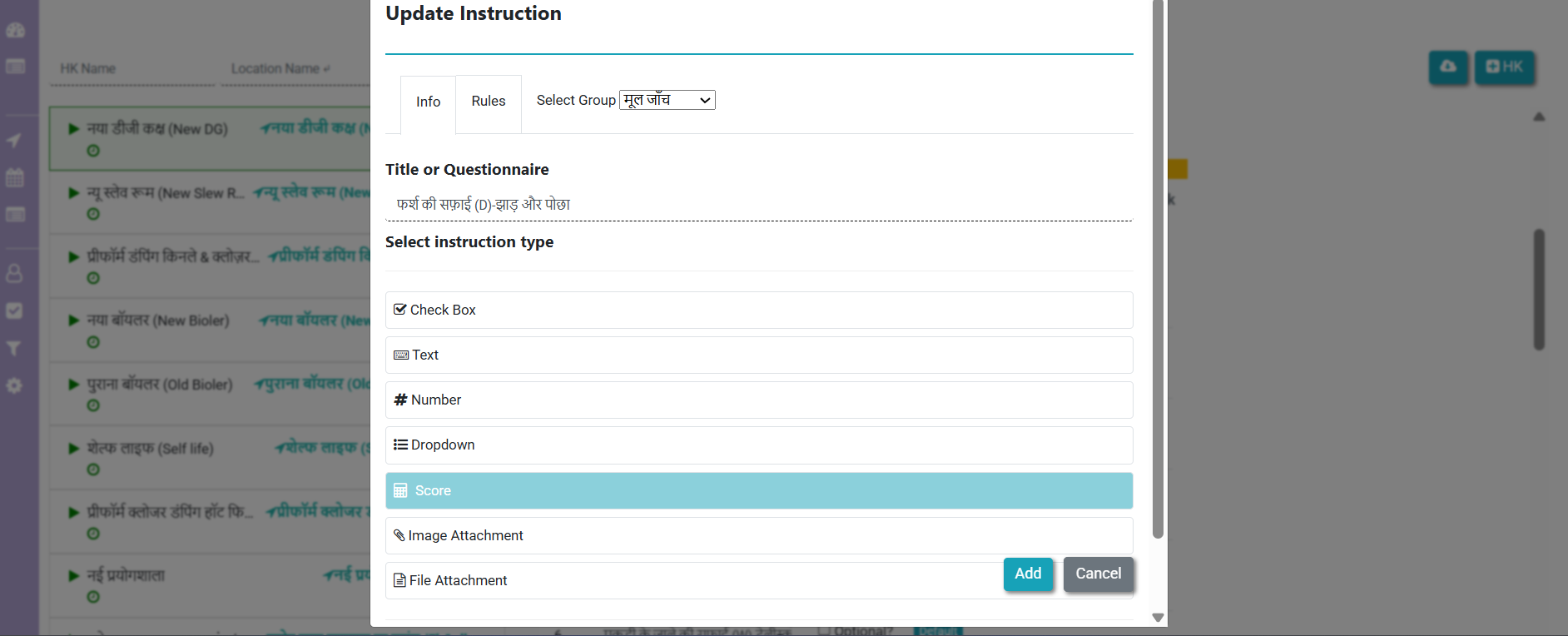
Click the Key icon to configure instructions.
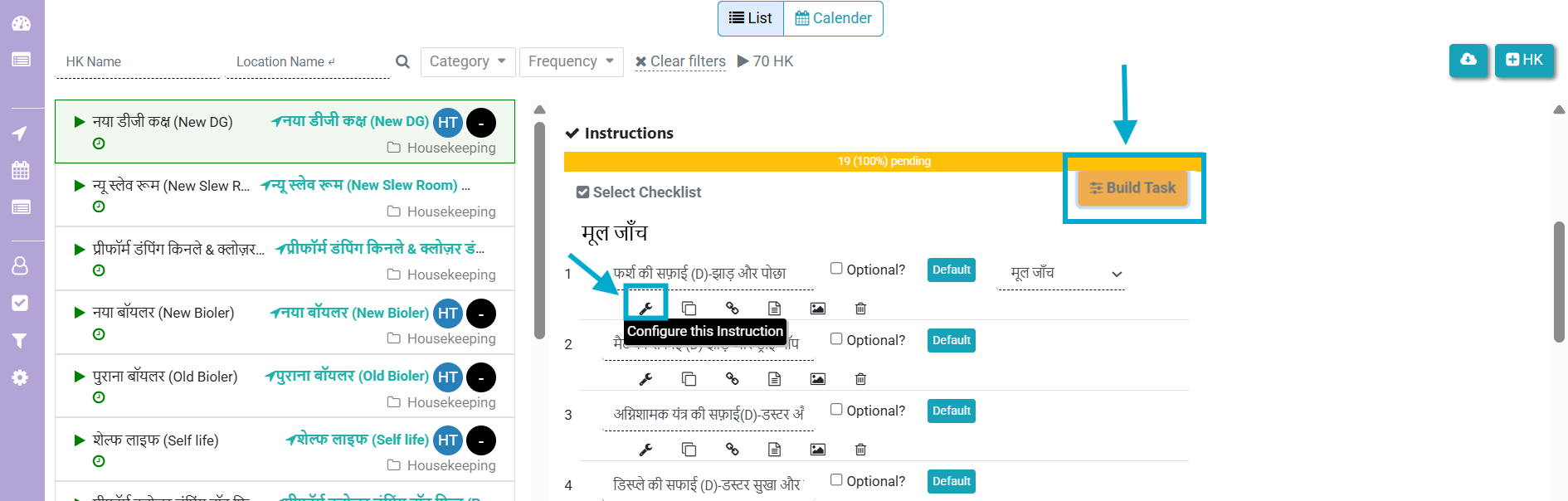

In the Instruction Type , select Score.

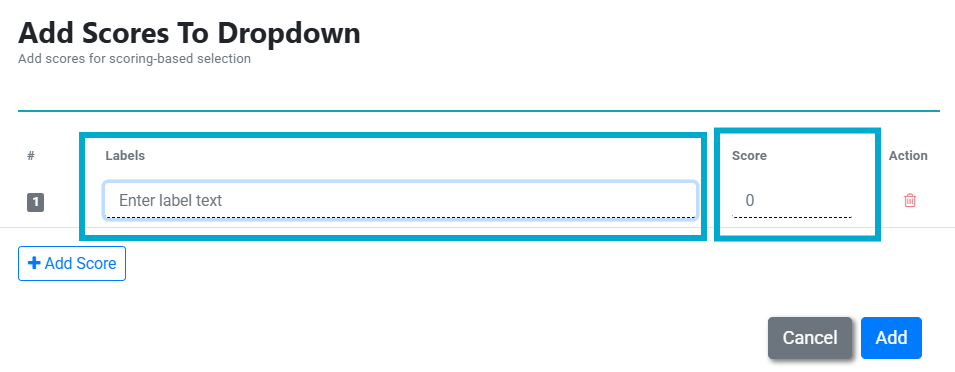
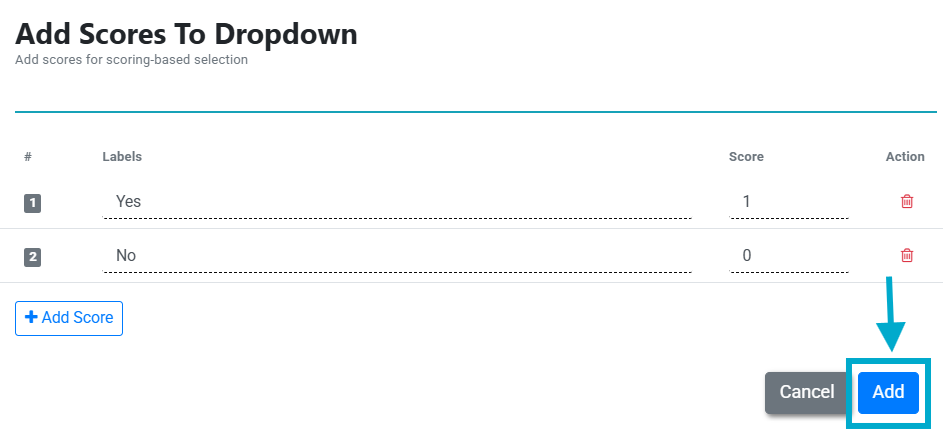
Add scoring labels (e.g., “Yes” = 1, “No” = 0).

Click Add to save.


Repeat the process for all checklist parameters where scoring is required.
3. How does staff access the Scorecard Checklist?
Once the checklist is configured:
Open the FacTech Staff App.
Scan the QR code linked to the checklist.
Open and fill the checklist.
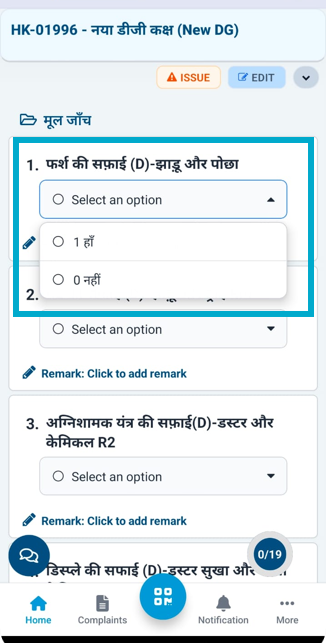

Select the appropriate scoring labels while submitting.

The system automatically calculates the total score based on selected responses.
4. How can I download the Scorecard Report?
To download the report:
Log in as Admin.
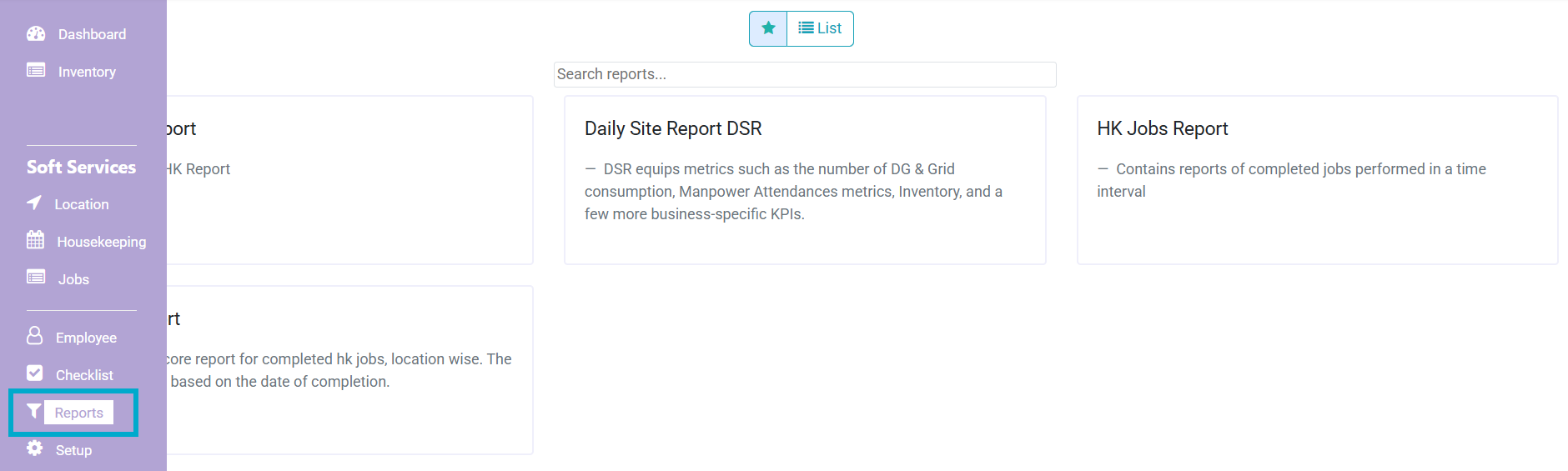
Go to Soft Services.
Click on Reports.

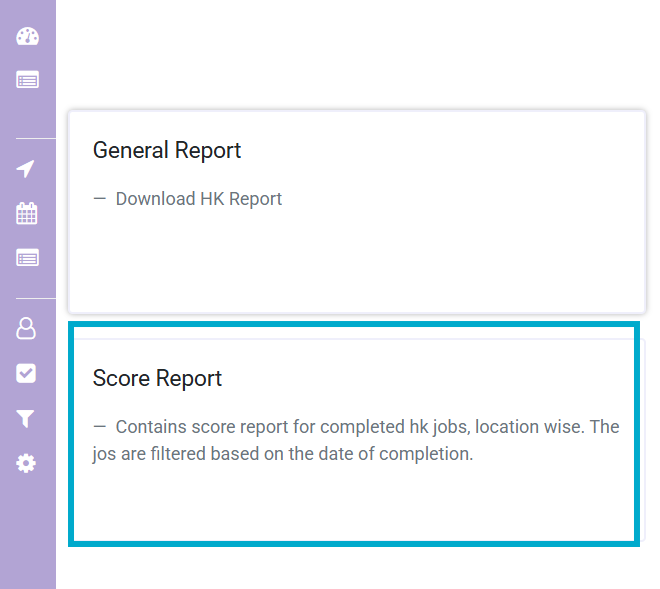
Select Scorecard Report.

Choose the required From Date and To Date.
Click Download Score Report.
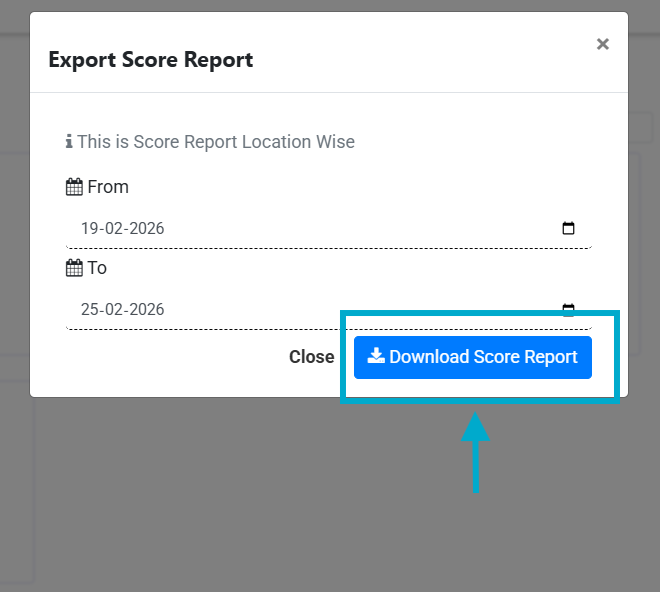


The report will be downloaded to your system.
5. What does “Total Score” and “Actual Score” mean in the report?
Total Score – The maximum possible score configured for the checklist within the selected date range.
Actual Score – The score achieved based on the submitted checklist responses.

This helps in evaluating performance and identifying areas for improvement.
Ready to Transform Your Facility Management?
See how Factech automates maintenance, assets, and compliance in one intelligent platform.
Let's Talk
Have questions about our AI-powered solutions? Our team is here to help you digitize your facility operations.
Ready to Transform Your Facility Management?
See how Factech automates maintenance, assets, and compliance in one intelligent platform.
Let's Talk
Have questions about our AI-powered solutions? Our team is here to help you digitize your facility operations.